
Get Tycoon Hub
Choose your device and we'll walk you through it
 Your device
Web app · Safari
iPhone & iPad
Use it in Safari, nothing to download
 Your device
App · Download
Android
Download and install the app
Web app · Safari
iPhone & iPad
Tycoon Hub runs in Safari and uses the same account as on Android. Add it to your Home Screen and it opens full screen, just like an app.
-
Step 01
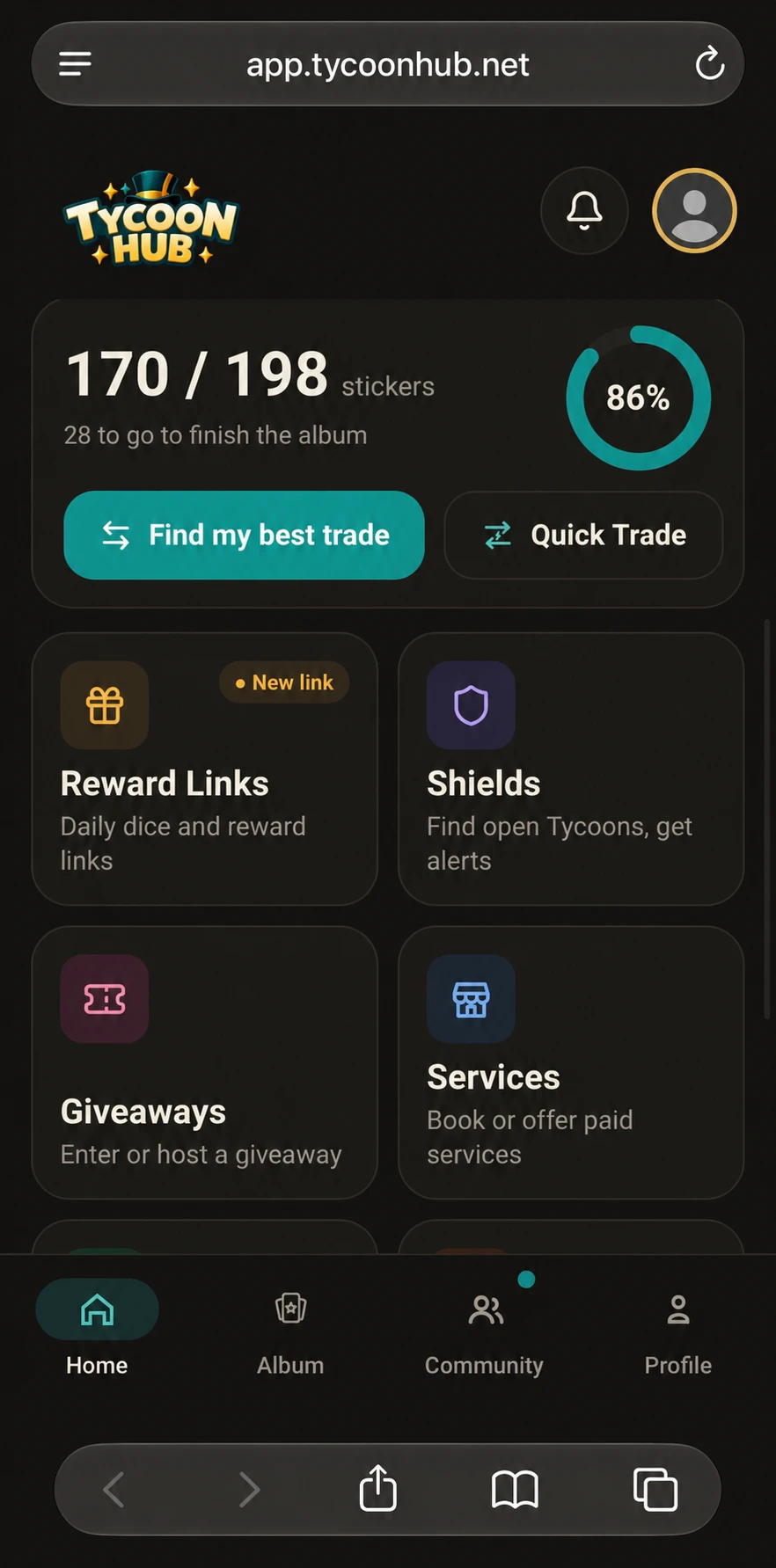
Open Tycoon Hub in Safari
Tap Open Tycoon Hub above. Make sure it opens in Safari, not another browser.
-
Step 02
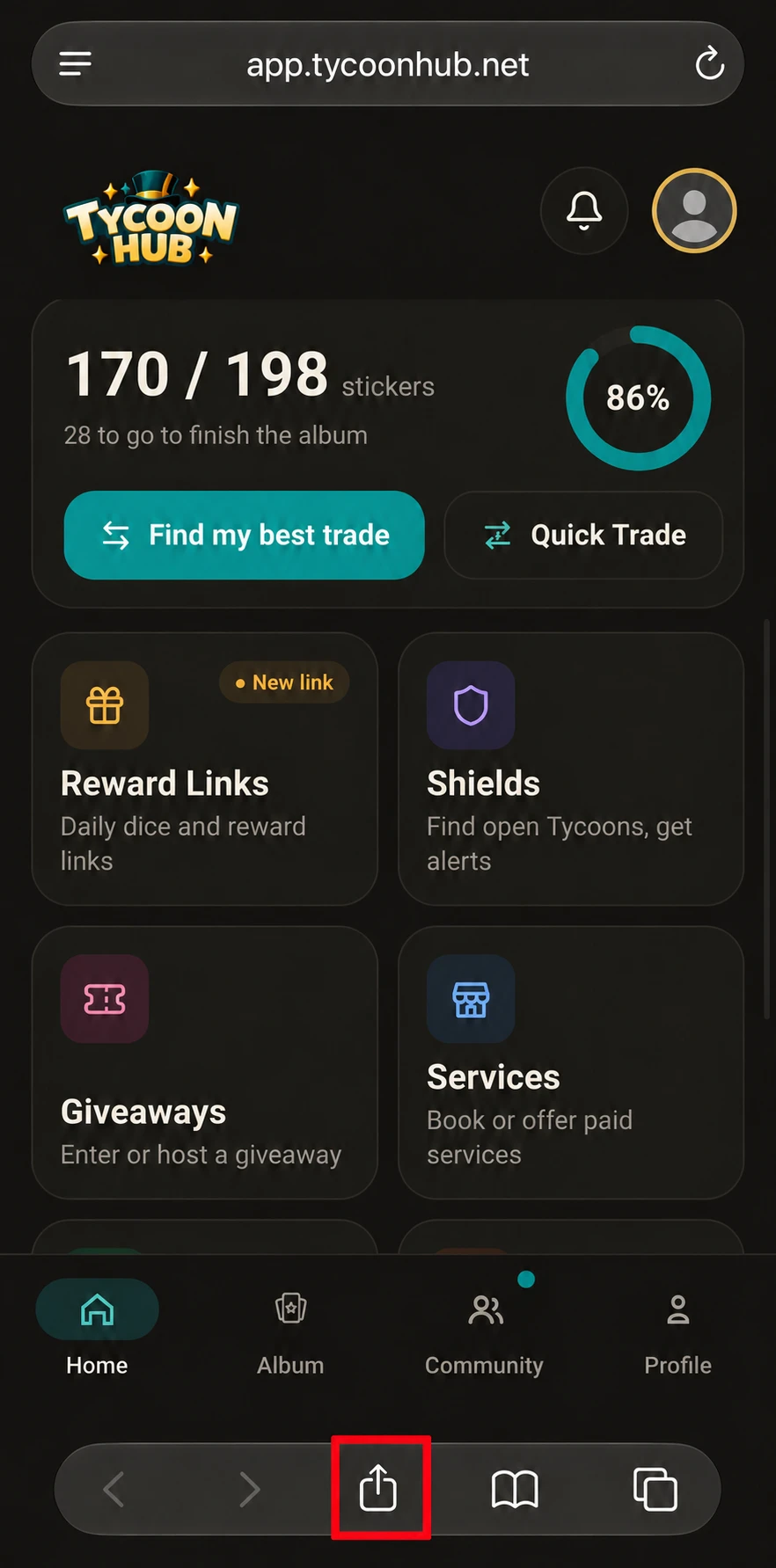
Open the Share menu
- iPhone: tap More, then Share. If your Safari tabs are set to Bottom or Top, tap Share straight away.
- iPad: tap Share.
Share is the square with an arrow pointing up.
-
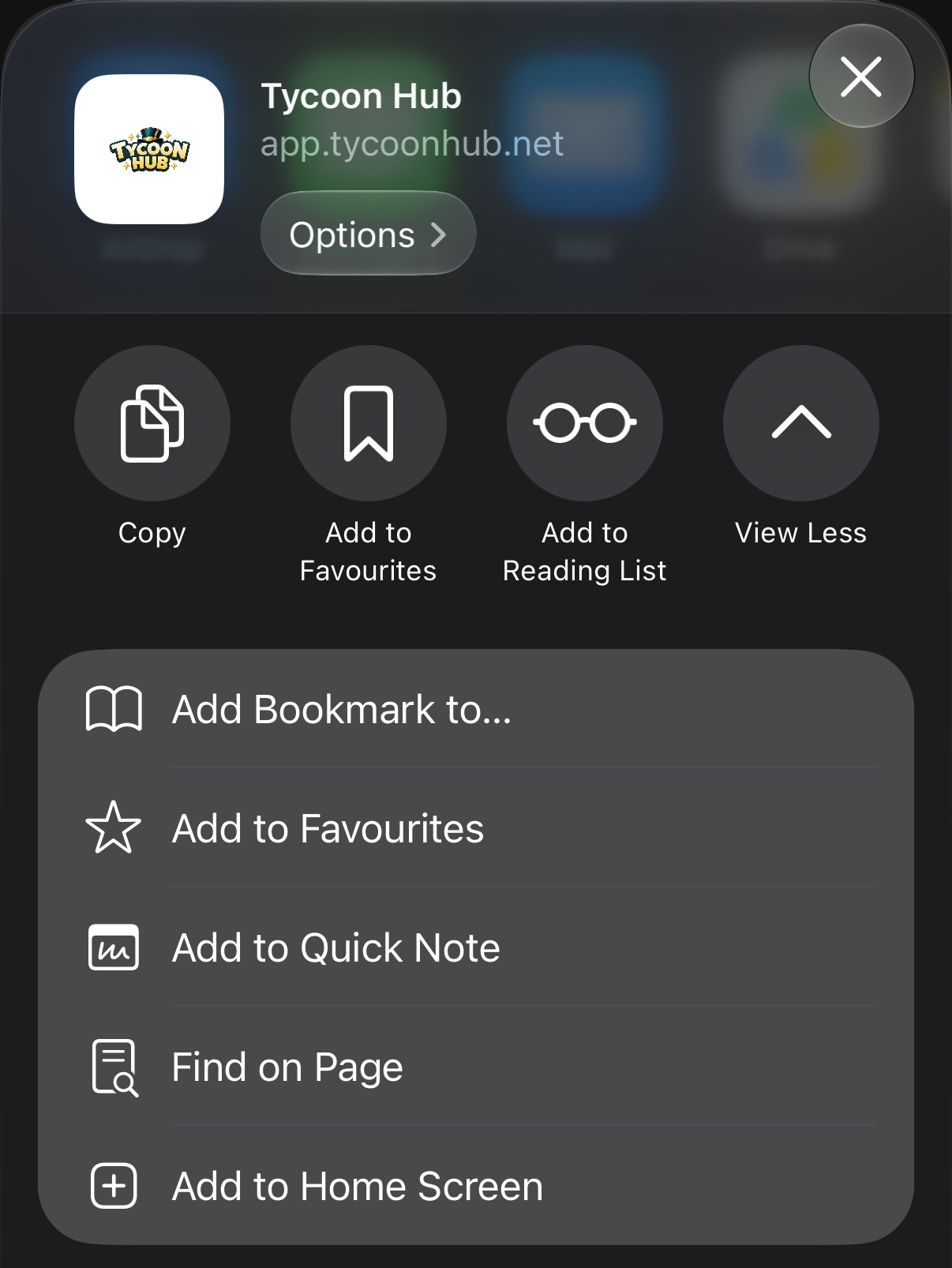
Step 03
Choose Add to Home Screen
Scroll down the list and tap Add to Home Screen. If it isn’t there, tap View More first. On iPad, tap More in the Share menu first.
-
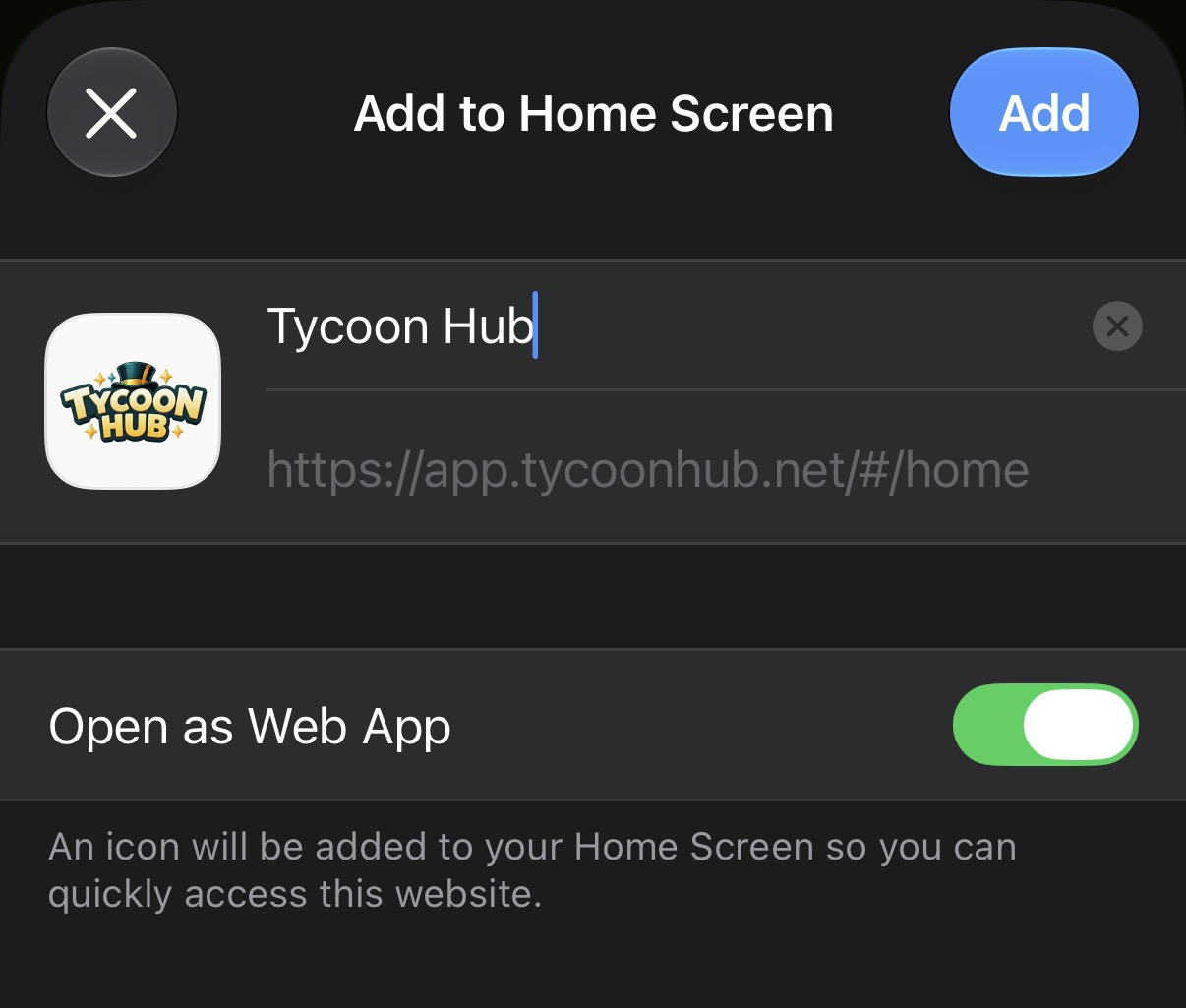
Step 04
Turn on Open as Web App and tap Add
Keep the name Tycoon Hub. If you see Open as Web App, make sure it’s turned on, then tap Add. Open Tycoon Hub from your Home Screen and log in.
Updates are automatic. You’ll always have the newest version every time you open it.
Something not working
Common fixes for iPhone and iPad. Still stuck? Email Support.
It opened in a different browser
Make sure it opens in Safari, not another browser, then follow the steps again.
I can’t find the Share button
On iPhone, Safari’s Compact layout keeps Share inside the More menu: tap More, then Share. If your tabs are set to Bottom or Top, the Share button is shown straight away. On iPad, tap Share in Safari. Share is the square with an arrow pointing up.
Add to Home Screen isn’t in the menu
Scroll down the list first (on iPad, tap More in the Share menu). If it’s still missing, scroll to the bottom, tap Edit Actions, then add Add to Home Screen.
On Android instead? See the Android guide
App · Download
Android
Download the official app straight from tycoonhub.net. Android walks you through the install. The screens can look a little different depending on your phone and Android version.
-
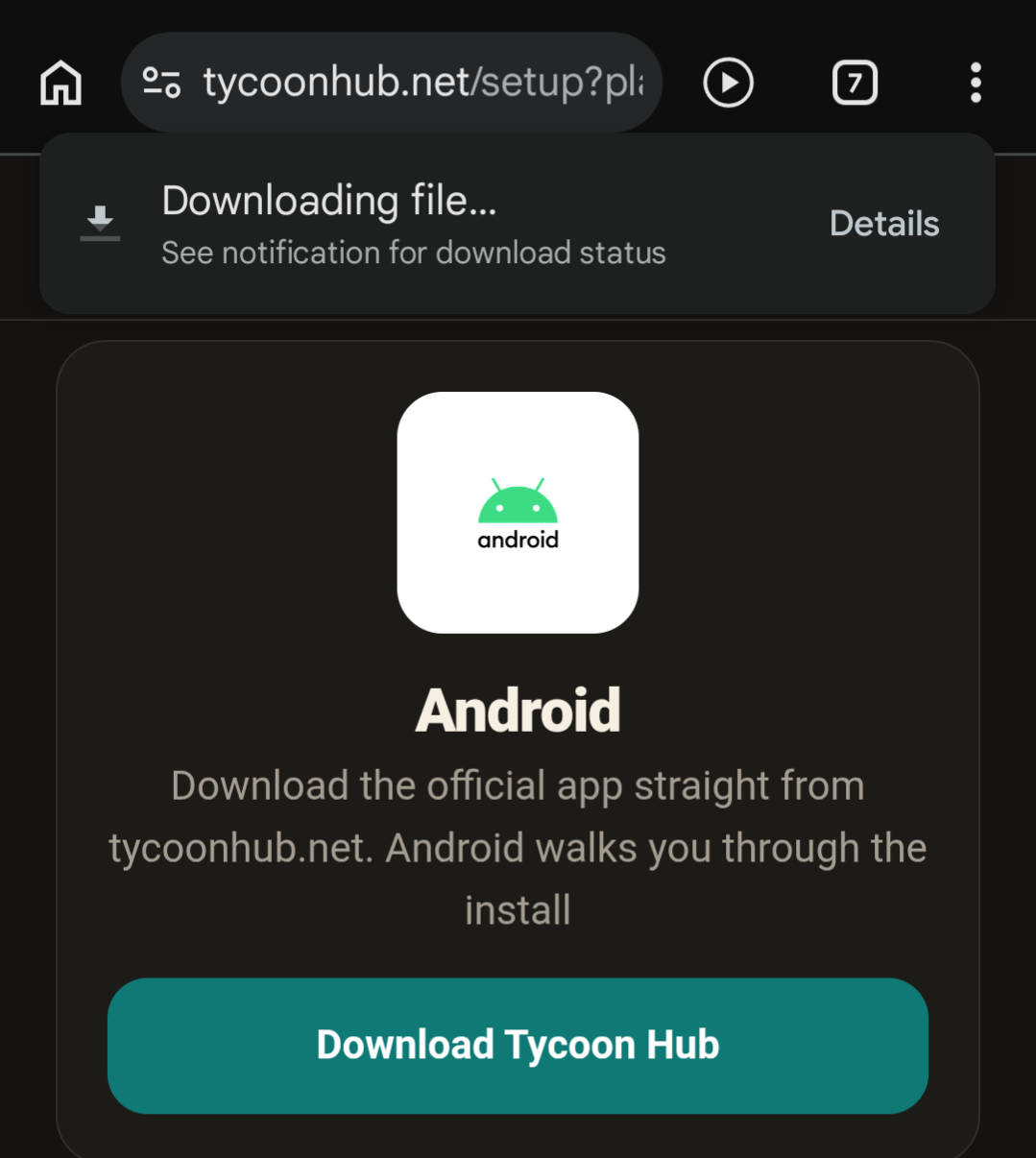
Step 01
Download the app
Tap Download Tycoon Hub above. If your browser asks, tap Download anyway. Chrome shows Downloading file while it downloads.
-
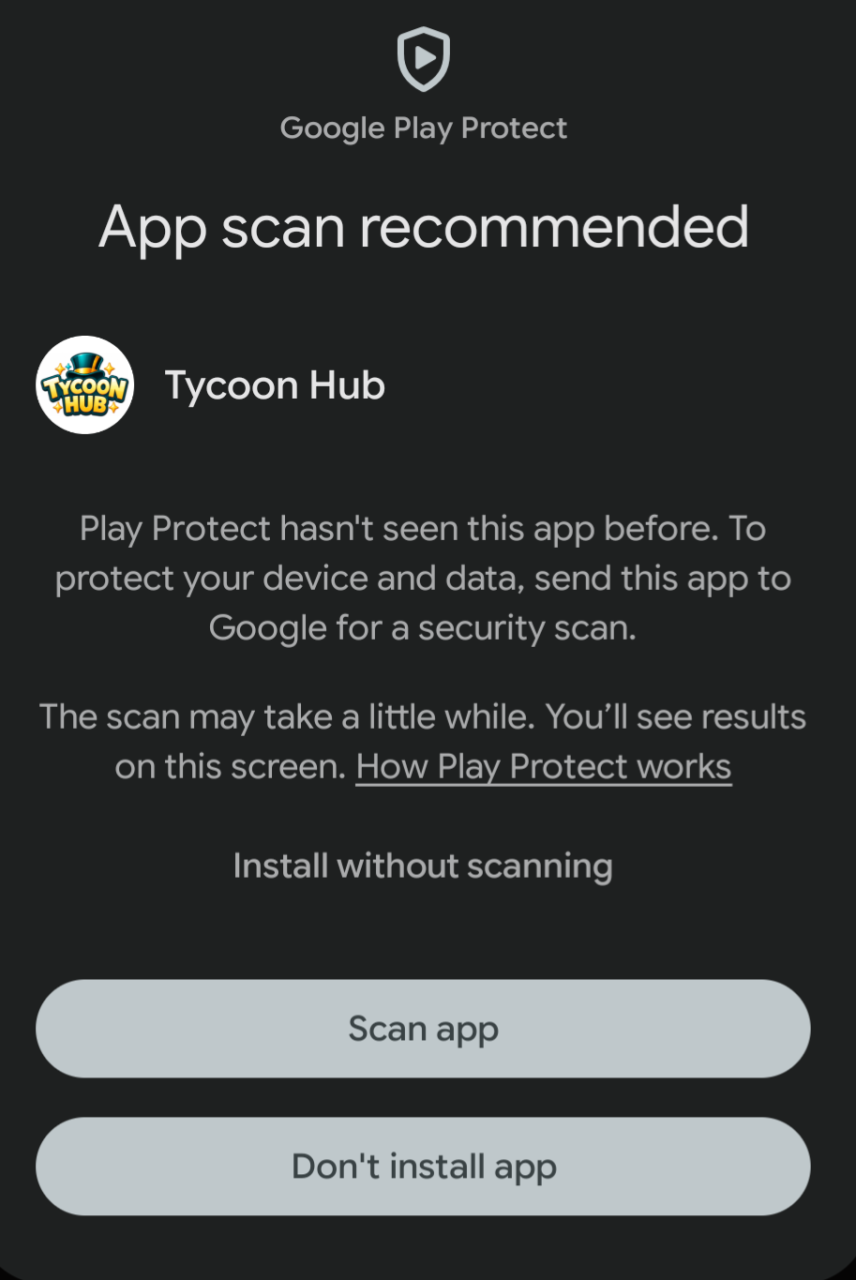
Step 02
Open the file and scan it
When the download finishes, open it from the notification or your Downloads. If Google Play Protect says App scan recommended, tap Scan app.
Separately, the first time you install an app from your browser, Android may ask you to allow it. Tap Settings, switch on Allow from this source, then go back.
-
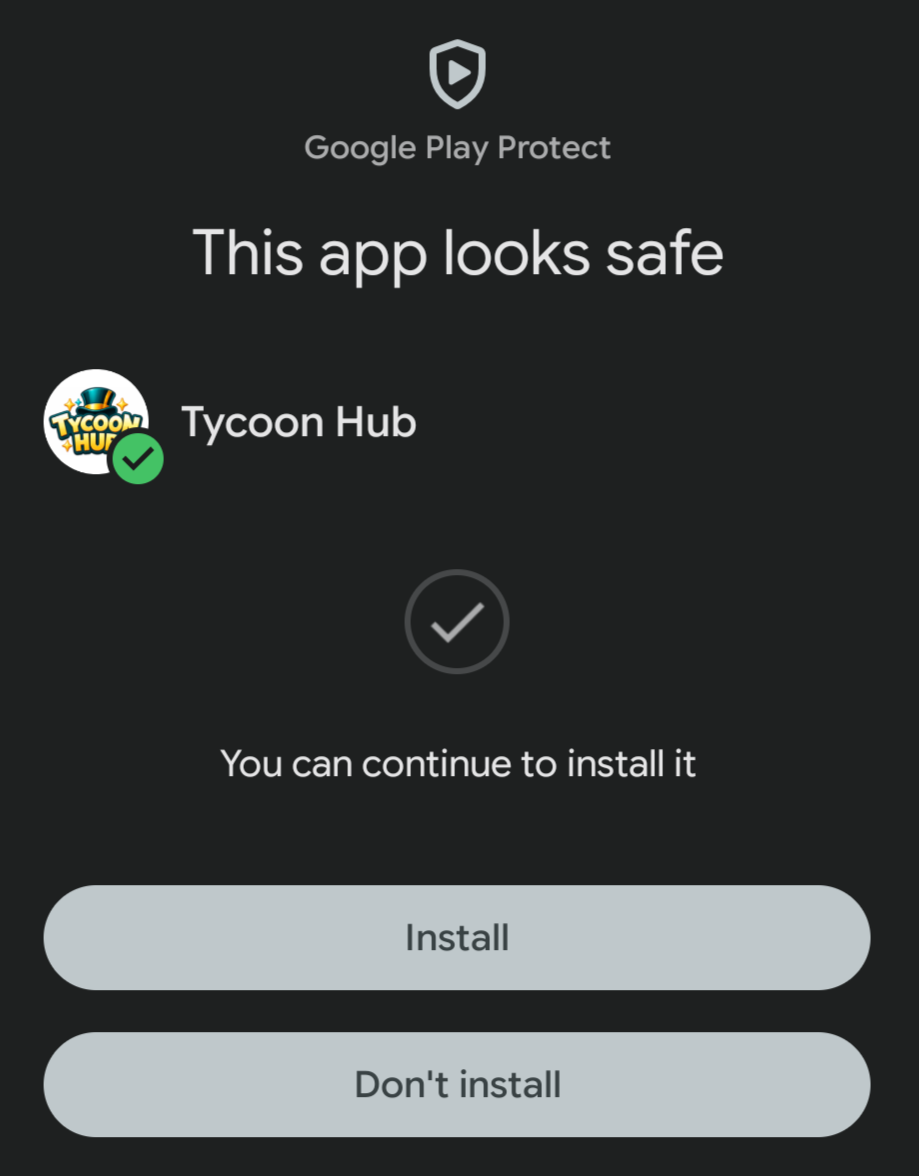
Step 03
Tap Install
When Play Protect says This app looks safe, tap Install.
-
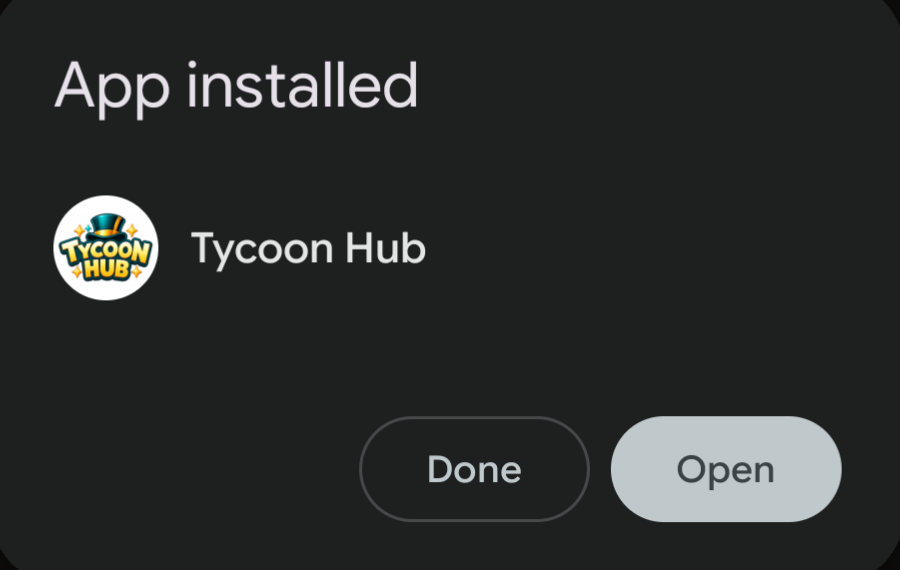
Step 04
Open and log in
Tap Open, log in or create your account, and you’re ready to go.
Updating later? The app tells you when a new version is out. Download it from here again and tap Install. Your account and album stay exactly as they are.
Something not working
Common fixes for Android. Still stuck? Email Support.
My browser asks before downloading
If your browser asks, tap Download anyway. Only download Tycoon Hub from tycoonhub.net.
Android won’t let me install it
The first time, Android may ask you to allow installs from your browser. Tap Settings, switch on Allow from this source, then go back and tap Install.
How do I update the app?
The app tells you when a new version is out. Download it from here again and tap Install. Your account and album stay exactly as they are.
On iPhone or iPad instead? See the iPhone & iPad guide